
The laptop trackpad has been your only input device for a year, and your wrist is starting to complain, your scrolls take four swipes, and switching between the work laptop and personal computer means reconnecting Bluetooth every time. A good wireless mouse is the most underrated productivity upgrade: it reduces strain, speeds up navigation, and can even control multiple computers. In 2026, the best work mice combine ergonomic shapes, precise sensors, and long battery life. This guide covers the best wireless mice for work and how to match one to your desk.
Quick verdict
For most professionals, the Logitech MX Master 3S is the best wireless work mouse: ergonomic, precise, and capable of controlling three devices with Flow. Pair it with the MX Keys S for the complete productivity setup.
Who this guide is for
This guide is for office workers, designers, students, and anyone who spends hours at a computer and wants a comfortable, reliable mouse that works across devices.
Who should skip these picks
Skip ergonomic productivity mice if you game seriously, where a lighter gaming mouse with a faster sensor is the right tool. Skip the premium picks if you use a mouse occasionally, where a simple wireless mouse is plenty.
Best wireless mice for work
1. Logitech MX Master 3S — best overall
Logitech MX Master 3S
Best wireless mouse for workWhy it works
- 8,000 DPI sensor that tracks on glass
- MagSpeed electromagnetic scroll wheel
- Quiet clicks and ergonomic shape
- Flow support for three devices
Tradeoffs
- Superb scroll wheel
- Ergonomic
- Long battery
- Heavy for gaming
- Expensive
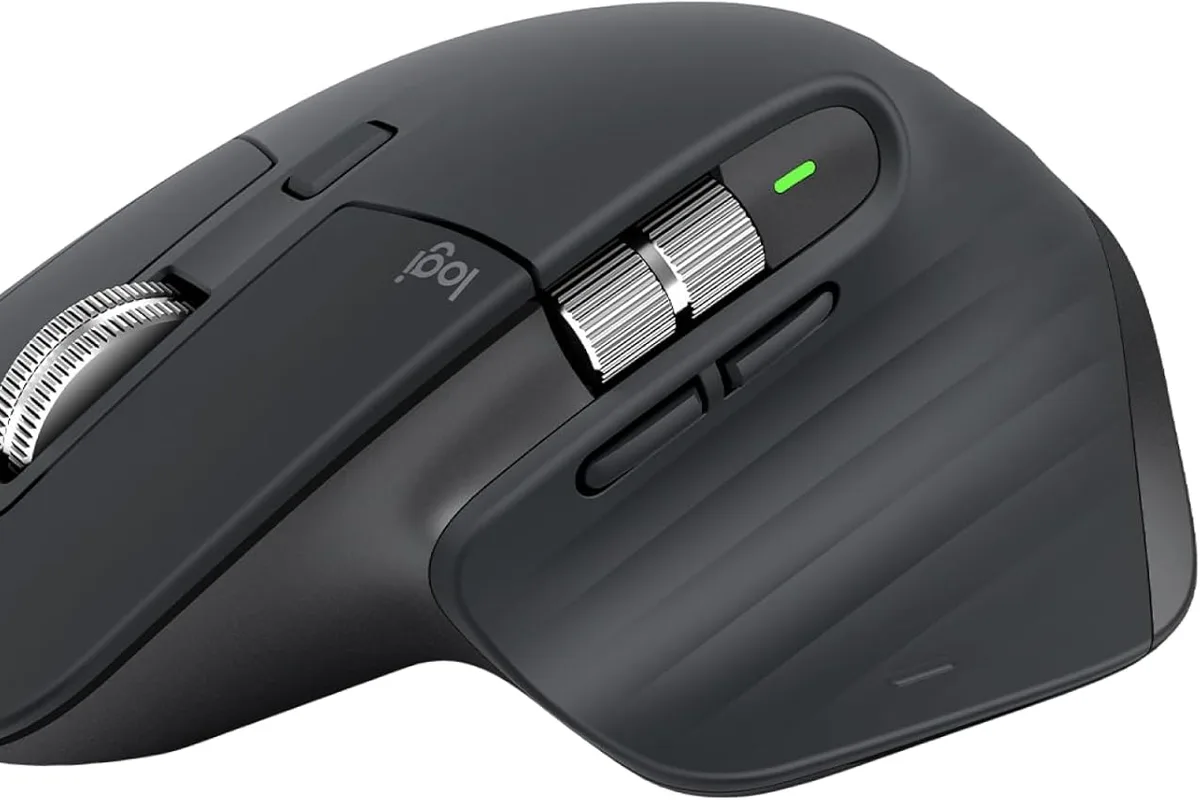
The MX Master 3S is the mouse that productivity reviewers recommend year after year because it nails the details. The sculpted shape supports your hand during long sessions, the MagSpeed scroll wheel free-spins through long documents or clicks through rows, and the 8,000 DPI sensor tracks on almost any surface, including glass. Flow lets you move the cursor between three computers and drag files across them, and the 70-day battery with fast charging removes battery anxiety. It is heavy for gaming and expensive, but for work it is the best mouse money can buy.
2. Logitech MX Keys S — the keyboard companion
Logitech MX Keys S
Best wireless keyboard for workWhy it works
- Smart illumination with hand detection
- PerfectStroke keys for quiet typing
- Flow multi-device support
- USB-C rechargeable battery
Tradeoffs
- Excellent typing feel
- Backlit
- Multi-device
- No wrist rest included
- Not mechanical
The MX Keys S is the keyboard half of Logitech’s flagship productivity setup, and it earns a place here because the MX Master 3S shines brightest with it. Flow pairs them so you can switch all devices with one gesture, and the quiet, backlit keys are excellent for long typing days. If you are upgrading your desk, buy the mouse and keyboard together.
Comparison table
| Device | Best for | Type | Battery | Multi-device | Price tier |
|---|---|---|---|---|---|
| MX Master 3S | Overall work | Ergonomic mouse | ~70 days | 3 devices via Flow | Premium |
| MX Keys S | Typing companion | Low-profile keyboard | Months | 3 devices via Flow | Premium |
How to choose a wireless work mouse
Start with ergonomics. Your hand size and grip determine the right shape, and a mouse that fits your hand reduces the strain that trackpads and flat mice cause. Then check battery life and charging: a mouse that lasts months and charges quickly is a better work tool than one that dies mid-deadline.
Consider multi-device support if you work across a laptop and desktop, and look for programmable buttons that match your actual workflow. Finally, weigh size and weight for travel, and decide whether you want a unifying receiver or Bluetooth-only connectivity.
Setting up your wireless work mouse
The first hour with a new mouse determines whether you keep it. Start by pairing it with your main computer, then install the manufacturer’s configuration software if one is available. Logitech’s Options+ app, for example, is where you assign the thumb buttons, set scroll behavior, and enable Flow across computers, so spend a few minutes mapping buttons to actions you actually repeat: back and forward in the browser, copy and paste, or switching between virtual desktops.
Next, tune the pointer. Windows and macOS both let you adjust pointer speed and acceleration, and most productivity mice also expose DPI settings in their own app. The right speed is one where you can move from one side of the screen to the other with one wrist movement without feeling like you are fighting the sensor. If the cursor skips or drifts, clean the sensor lens and check that you are using a surface the sensor handles well; many modern mice, including the MX Master 3S, track on glass, but textured or glossy surfaces can still confuse older sensors.
For multi-device setups, set up Flow or the equivalent feature before your next work session. Pair the mouse with both computers, enable the cross-computer feature in the software, and test dragging a file between screens. It saves the daily ritual of pressing the device-switch button every time you move desks.
Finally, build a charging habit. Keep the included cable or charger where you can see it, and charge when the battery indicator warns you rather than waiting for the mouse to die mid-deadline. A one-minute top-up often covers a full workday, so a quick charge in the morning keeps you running.
What not to overpay for
Do not pay for gaming-grade sensors for office work, where a productivity sensor is more than accurate enough. Do not pay for RGB lighting on a work mouse. Skip mice with proprietary chargers, and avoid buying a premium mouse without checking that the shape fits your hand, because ergonomics cannot be fixed with software.
Final verdict
Buy the MX Master 3S for the best work mouse and pair it with the MX Keys S if you want the full Flow setup. Try the shape before you commit if you can, and check the battery and connectivity options against your desk. A great mouse is the cheapest way to make every workday feel better.