
Your new laptop has two USB-C ports and nothing else, and the desk still needs a monitor, a mouse, an ethernet cable, and an SD card reader. USB-C hubs solve the port shortage, but the market is confusing: cheap hubs overheat, underpowered hubs drain laptops, and marketing blurbs claim dual displays that the laptop cannot actually drive. This guide covers the best USB-C hubs for laptops in 2026, from travel-sized hubs to full Thunderbolt docks.
Quick verdict
For most laptop users, the Anker 555 USB-C Hub is the best all-rounder: dual HDMI output, 100W power delivery, and a compact body that works for both desks and travel. If you have a Thunderbolt laptop and want a permanent one-cable desk, the CalDigit TS4 is the best dock. The Dell U2723QE is the monitor alternative that includes a hub built in.
Who this guide is for
This guide is for laptop users with limited ports, remote workers building one-cable desks, and travelers who need display output and card readers on the go.
Who should skip these picks
Skip USB-C hubs if your monitor already has a hub with power delivery, where a simple cable is enough. Skip Thunderbolt docks if your laptop lacks Thunderbolt, since the premium buys unused bandwidth. And skip hubs entirely if you never connect more than one peripheral, where a cheap adapter is sufficient.
Best USB-C hubs for laptops
1. Anker 555 USB-C Hub — best overall
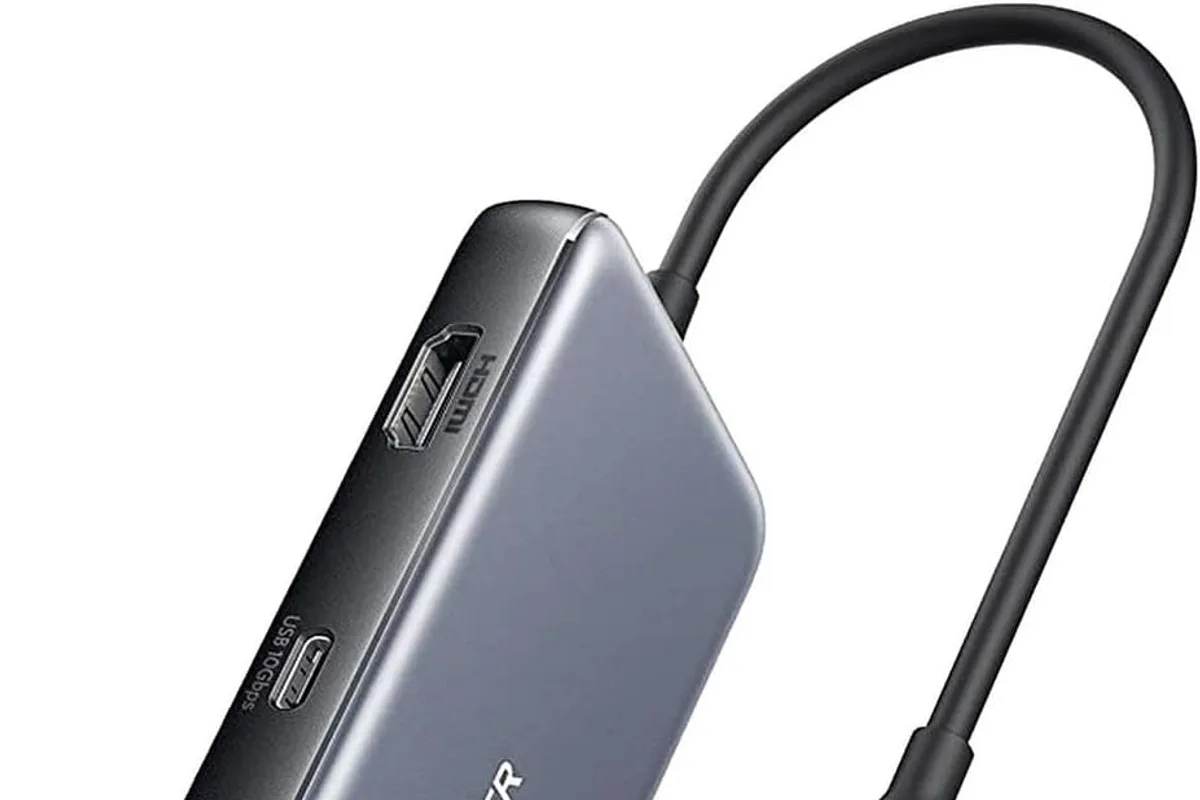
Anker 555 USB-C Hub (8-in-1)
Best USB-C hub for laptopsWhy it works
- Two HDMI ports for dual 4K displays
- 100W USB-C power pass-through
- USB-A and SD card readers
- Aluminum body that stays cool
Tradeoffs
- Full hub in a small package
- Dual displays
- Reliable
- HDMI at 30Hz for 4K on one port
- Cable is short
The Anker 555 is the hub that covers most setups without breaking the bank. It adds two HDMI ports for dual 4K displays, a USB-C data port, USB-A ports, and SD card readers, all with 100W power delivery passthrough. The aluminum body handles heat well, and the compact size fits in a laptop bag. It is not a Thunderbolt dock and one HDMI port tops out at 4K30, but for the price it is the best all-round hub.
2. CalDigit TS4 — best Thunderbolt dock
CalDigit TS4
Best premium Thunderbolt 4 dockWhy it works
- Thunderbolt 4 with 98W charging
- 18 ports including 2.5G ethernet
- Dual 4K display support
- Powerful enough for one-cable desks
Tradeoffs
- Huge port selection
- Reliable
- Fast charging
- Very expensive
- Overkill for light users
The TS4 is the dock for people who want their desk to work perfectly every day. It offers 18 ports, including dual 4K display support, 2.5G ethernet, SD and microSD slots, and 98W charging, all through a single Thunderbolt 4 connection. It is built like a small appliance and has been the standard recommendation for MacBook Pro users and serious Windows workstations. It is expensive and overkill for light users, but for a permanent setup it is the best dock money can buy.
3. Dell U2723QE — the monitor that is also a hub
Dell UltraSharp U2723QE
Best 4K monitor for home officesWhy it works
- 27-inch 4K IPS Black panel
- 90W USB-C with daisy-chaining
- Ethernet and multiple USB ports
- Factory-calibrated color
Tradeoffs
- Sharp image
- Built-in hub
- Great ergonomics
- 60Hz only
- Expensive
The U2723QE is a monitor first, but its built-in USB-C hub makes it the elegant alternative to a separate dock: connect your laptop with one cable and get power delivery, ethernet, USB ports, and display output in a single device. For a single-monitor desk, this setup is cleaner than a hub plus monitor. It costs more than a hub, but it replaces both the hub and the cable mess.
Comparison table
| Device | Best for | Ports | Power delivery | Dual displays | Type |
|---|---|---|---|---|---|
| Anker 555 | Travel + desks | 8 | 100W | Yes (4K30) | USB-C hub |
| CalDigit TS4 | Permanent Thunderbolt desk | 18 | 98W | Yes (4K60) | Thunderbolt dock |
| Dell U2723QE | Monitor with built-in hub | Hub + display | 90W | Single | Monitor hub |
How to choose a USB-C hub
Count the ports you actually need before reading specs: displays, USB-A devices, SD cards, ethernet, and charging. Then check power delivery, matching the hub’s wattage to your laptop charger. For travel, choose a compact, bus-powered hub; for a desk, a powered hub or dock gives stable dual-display and peripheral performance.
Verify your laptop’s video output support. A hub cannot create DisplayPort alt-mode support that the laptop does not have, so check your model’s specifications for dual-monitor limits. Finally, read reviews for heat and reliability, because cheap hubs fail under sustained load.
Setting up your hub or dock
The first connection should be deliberate. Plug the hub’s USB-C cable directly into your laptop’s main USB-C port, ideally the one marked with a display or charging icon, and connect the power adapter to the hub’s power delivery port before attaching displays and peripherals. This order avoids the flaky handshake that happens when a hub wakes up without enough power.
Next, verify each port does what you expect. Connect your monitor and check the resolution and refresh rate in the operating system’s display settings, then plug in your keyboard, mouse, and external drive one at a time. If a device does not appear, try a different hub port or cable before assuming the hub is faulty; USB-C cables vary wildly in data speed, and some cheap cables only carry power.
Keep the hub’s firmware and your laptop’s drivers up to date. Anker, CalDigit, and other manufacturers release firmware updates that fix display and charging issues, and a Windows or macOS update often improves USB-C compatibility. Check the manufacturer’s support page after the first week of use, especially if you see intermittent disconnects.
Finally, plan for heat and cable strain. A busy hub gets warm, which is normal, but it should never be hot to the touch; keep it on a hard surface with airflow and avoid burying it under a laptop. Use a short, high-quality cable for the connection to your laptop, and avoid bending the hub’s cable at sharp angles in a travel bag. A little care here is what separates a hub that lasts years from one that dies mid-presentation.
What not to overpay for
Do not pay for Thunderbolt if your laptop does not support it. Do not pay for 10GbE or multiple 4K displays you will never use. Skip hubs with flimsy cables and no power delivery if you plan to charge through them, and avoid unpowered hubs for power-hungry peripherals like external SSDs.
Final verdict
Buy the Anker 555 for the best value hub, the CalDigit TS4 for a permanent Thunderbolt desk, and consider the Dell U2723QE if you want the monitor and hub in one. Match the power delivery to your laptop, verify dual-display support, and buy the smallest hub that covers your actual ports. Your desk will feel less like a cable farm and more like a workstation.