
The stream chat says your camera looks like it was recorded on a potato, and the lighting in your office turns every video call into a horror movie. Webcams are the most visible piece of a streaming or remote-work setup, and in 2026 the gap between a $50 webcam and a $150 one is enormous: sensor size, frame rates, and software make the difference between “fine” and “broadcast quality.” This guide covers the best webcams for streaming and video calls, plus the lighting and audio that make them shine.
Quick verdict
For streamers, the Elgato Facecam is the best choice: clean 1080p60 video, a large sensor for low light, and no software required. For video calls plus 4K recording, the Logitech Brio is the best all-rounder. Either way, add lighting and a real microphone before spending more on the camera.
Who this guide is for
This guide is for streamers, content creators, and remote workers who want a webcam that looks sharp on camera, handles their lighting, and lasts for years.
Who should skip these picks
Skip dedicated webcams if you already own a mirrorless camera or a recent smartphone; both outperform webcams with the right software and mount. Skip premium webcams if you only take casual calls, where a mid-range 1080p model is plenty.
Best webcams for streaming
1. Elgato Facecam — best for streamers
Elgato Facecam
Best webcam for streamersWhy it works
- 1080p60 with all-pixel autofocus
- Large 1/1.8-inch sensor for low-light quality
- No software required for basic use
- Detachable mount works on monitors and arms
Tradeoffs
- Clean 60fps image
- Good low light
- Studio-ready design
- No built-in microphone
- Requires USB 3.0
The Facecam is built specifically for streaming, and it shows. The 1/1.8-inch sensor captures a clean, detailed 1080p60 image with good low-light performance, the fixed-focus lens with all-pixel autofocus keeps you sharp, and the image is already well-exposed out of the box, no software needed. The detachable mount works on monitors and arms, and the aluminum body looks professional on stream. It lacks a microphone and needs USB 3.0, but for streamers it is the best tool in this guide.
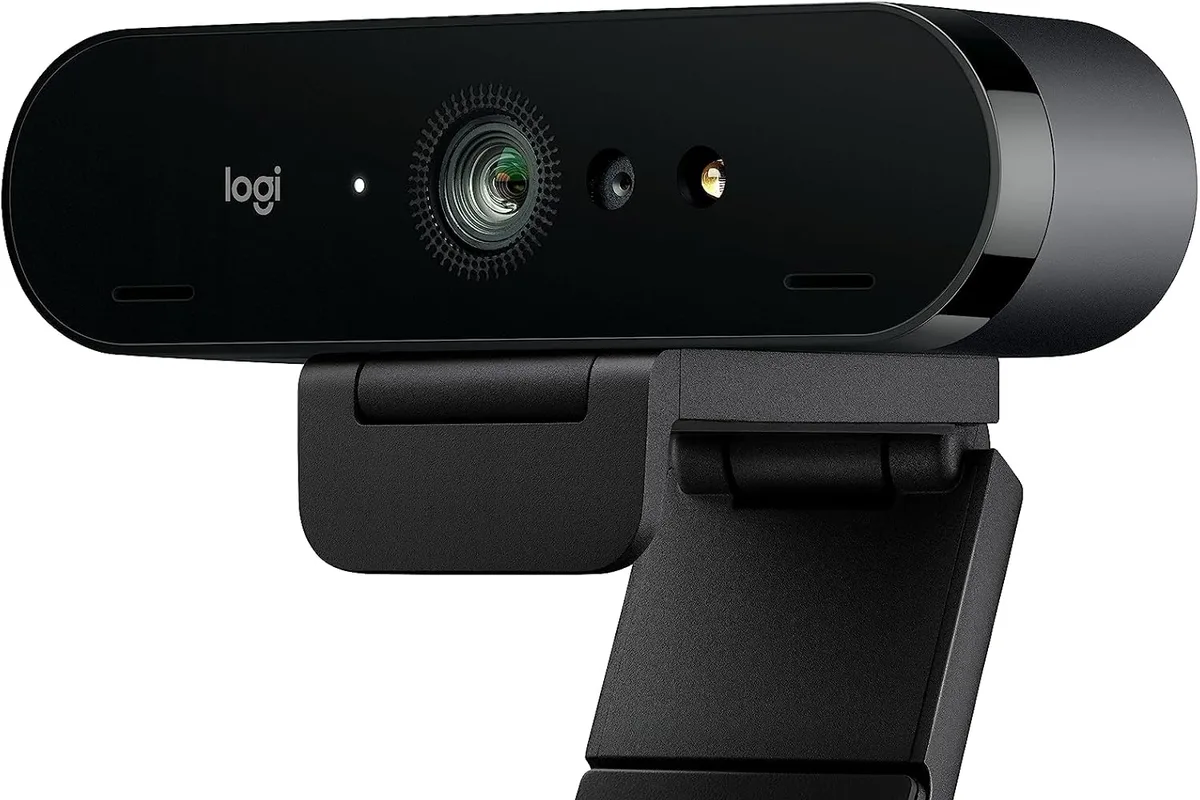
2. Logitech Brio 4K — best all-rounder
Logitech Brio 4K
Best webcam for streaming and callsWhy it works
- 4K Ultra HD at 30fps and 1080p at 60fps
- RightLight with HDR for tough lighting
- High dynamic range sensor
- Windows Hello facial recognition
Tradeoffs
- Excellent image quality
- Versatile mounting
- Great software
- Pricey
- Large footprint
The Brio is the webcam that does everything: 4K recording for local content, 1080p60 for streaming, RightLight HDR for difficult lighting, and Windows Hello for secure logins. It is the best choice if you want one camera for calls, streams, and recording, and the Logitech software gives you manual control over zoom, exposure, and white balance. It is larger and pricier than the Facecam, and for pure streaming the Facecam’s image is cleaner, but for versatility the Brio wins.
Comparison table
| Webcam | Best for | Resolution | Low light | Software | Mic |
|---|---|---|---|---|---|
| Elgato Facecam | Streaming | 1080p60 | Excellent | Optional | No |
| Logitech Brio | Calls + 4K recording | 4K/1080p60 | Good | Required for manual | No |
How to choose a streaming webcam
Start with resolution and frame rate: 1080p60 is the streaming standard, and 60fps makes motion look smooth on camera. Then look at sensor size, which determines low-light performance, and check whether the webcam works with your streaming software without fiddly drivers.
Then improve the scene before the camera: a light in front of you, a clean background, and a decent microphone do more for perceived quality than a more expensive webcam. Finally, consider the mount and cable management, because a webcam that wobbles or tangles will annoy you every stream.
Setting up your webcam for better video
Where you place the camera matters more than which model you buy. Mount it at eye level, either on top of your monitor or on a small arm, so viewers look straight at you instead of up your nose. Frame yourself with a little headroom above your hair and your shoulders visible below, then test the angle with a video call or a recording before your first stream.
Lighting is the next step. Put a soft light source in front of you, slightly above eye level, rather than behind you where it turns you into a silhouette. A ring light or a simple LED panel is enough; you do not need expensive studio gear to make a Facecam or Brio look good. If your room has strong window light, close the blinds behind you and keep the window in front of you so the camera exposes your face correctly.
Once the image looks right, lock the settings. Webcam software like Camera Hub or Logitech G HUB lets you set exposure, white balance, and zoom, and manual control stops the camera from constantly re-adjusting when you lean forward or wave your hands. Test how you look at different times of day, because changing sunlight will shift your exposure even with a good sensor.
Finally, make the setup repeatable: leave the camera mounted, keep the cable tucked along the monitor arm, and set the same software profile for work calls and streaming. When the hardware stays in place, the quality does too.
What not to overpay for
Do not pay for 4K if you stream in 1080p. Do not pay for built-in microphones on premium webcams, since a separate mic is almost always better. Skip webcams with software that requires accounts for basic settings, and avoid buying a new webcam before fixing your lighting, because light is the real bottleneck.
Final verdict
Choose the Elgato Facecam for the best streaming image and the Logitech Brio for 4K versatility. Buy a $30 light and a $50 microphone before upgrading beyond these, set the camera at eye level, and test your stream quality with a friend. A great webcam with bad lighting still looks bad; great lighting with a good webcam looks professional.